

Freehand Notes
Esta página aún no está disponible en tu idioma.
Drawing mode
Section titled “Drawing mode”To enter drawing mode, tap the live button showing a ‘paint brush’ icon in the bottom right corner of the home screen.
Once you are in drawing mode, the app bar will change and show the drawing controls. Select a brush and start annotating your songs with notes. The eraser can be used to remove individual lines and the undo will revert the last action. You can use the delete button to remove all the drawings.
Once you have finished, use the back button to save the notes.

Customising the pen
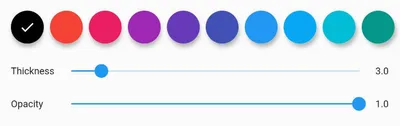
Section titled “Customising the pen”To customise the style of the pens, select the pen you wish to change and then tap on it again. This will open the pen edit pane allowing the colour, thickness, and opacity of a pen to be customised.
Scrolling and zooming
Section titled “Scrolling and zooming”When in the freehand drawing mode, you can zoom the song in/out and pan around the song using two fingers. A pinch-to-zoom gesture will zoom the song where as scrolling can be achieved by placing two fingers on the screen and panning around.
Freehand notes in songs vs sets
Section titled “Freehand notes in songs vs sets”If you add freehand notes to a song when in ‘songs’ mode, the notes will show up both in the ‘songs’ mode and also to any time you add that song into a set. If you add/edit notes in a song that’s within a set, those edits will only affect the instance of the song within that set.
If you wish all edits to freehand notes made within a set to be used globally across all instances of that song in all sets, you can enable the ‘Unified freehand notes’ option in the ‘Live Buttons’ settings menu.