

Song Display Settings
Dieser Inhalt ist noch nicht in deiner Sprache verfügbar.
This settings page allows for customization of how the song is displayed in the central viewer of the app. ChordPro (text based) and PDF songs can be customized separately.
ChordPro Songs
Section titled “ChordPro Songs”Song formatting
Section titled “Song formatting”SongbookPro allows full customization of how ChordPro songs are displayed. This includes font size, text color, text highlighting, background color and more. Selecting the ‘Song formatting’ option will launch the full customization page allowing you to adjust all these settings. While in the customization page, a preview song will be displayed to show you what the changes will look like.
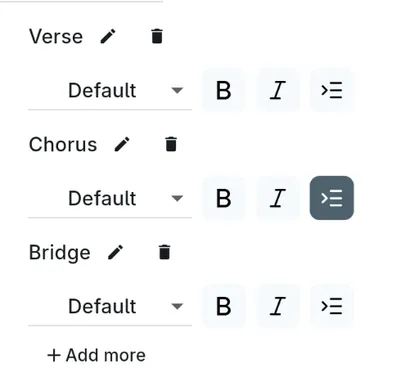
The level of customization available is massive. Lyrics, chords, titles and metadata can all be customized individually including size, color, bold, italic and more. Additionally, different lyrics formats can be used for different sections of your songs. Sections are defined by use of the {c: ...} syntax and by default ‘Verse’, ‘Chorus’ and ‘Bridge’ all have individual settings blocks (although you can add more custom sections if you need to).
Chord notation
Section titled “Chord notation”SongbookPro supports the following chord notations:
- Standard (B/Bb)
- German (H/B instead of B/Bb)
- Latin notation
- Nashville notation
Please be aware that regardless of this setting, songs are expected to be in the standard chord notation when they are imported. The in-app song editor and the rest of the app will respect this setting however.
Page layout
Section titled “Page layout”The display mode changes how songs get laid out when they are displayed:
-
Auto If the song can be displayed on a single page it will be, otherwise scrolling will be used.
-
Scroll songs This will show each song in a single column and the screen can be scrolled if the song is longer than the screen. This is ideal for tablets and other portrait displays and the autos roller can be used In this mode for a truly handfree experience.
-
Split songs into pages In this mode songs are split into columns and pages to provide the most space efficient display. The app will use as many columns as it can fit to optimise screen space and you can swipe sideways to move between pages.
-
Fit to page (Windows only) In this mode songs will be forced to display on a single page. The font size will be reduced in some cases to make this possible.
Long lines
Section titled “Long lines”You can configure how SongbookPro should handle lyric lines which are too long to fit on a single line. You can either let SongbookPro identify a suitable point to split the line into two, or you can elect to reduce the font size of the whole song such that no breaks are required.
Configure accidentals
Section titled “Configure accidentals”When choosing between two musically equivalent chords (e.g. Eb vs D#), SongbookPro usually selects the chord which is musically correct given the current key. You can use the controls here to override this behavior and force a certain chord to be preferred.
PDF Songs
Section titled “PDF Songs”Page layout
Section titled “Page layout”The layout mode for PDF files can be controlled separately to that of ChordPro songs. By default it will use the same layout mode as is set for ChordPro songs.
PDF quality
Section titled “PDF quality”When PDF files are displayed, they are first converted into an image format. The quality setting controls the level of detail to which PDF files are rendered. Medium is the default and should be used unless you have performance/quality issues.
Invert pdf colors
Section titled “Invert pdf colors”PDF files are displayed as is by default. If you use dark mode and would like your PDF files to follow this theme, you can opt to invert the colors of the PDF files.
Auto crop on import
Section titled “Auto crop on import”When importing PDF files, SongbookPro can automatically remove any excess margins from the file. This crop can be adjusted later using the crop option in the Quick Actions menu.